Showing posts with label how to write multi-voice poetry. Show all posts

Wednesday, 8 March 2017

A link to a pedagogy paper (on using multi-voice in the Classroom)


Whale road Review published my pedagogy paper about Teaching how to write multi-voice poetry (for students and educators) in their Spring issue. Published April 1 2017. Please have a look:

http://www.whaleroadreview.com/mcgowan/

Thursday, 7 January 2016


USING AUDIENCE PARTICIPATION

WITH YOUR MULTI-VOICE POETRY


rhythm of  the tides002

As an example we can use my multi-voice poem: Rhythm of the Tides. But this technique would work for many similar poems.


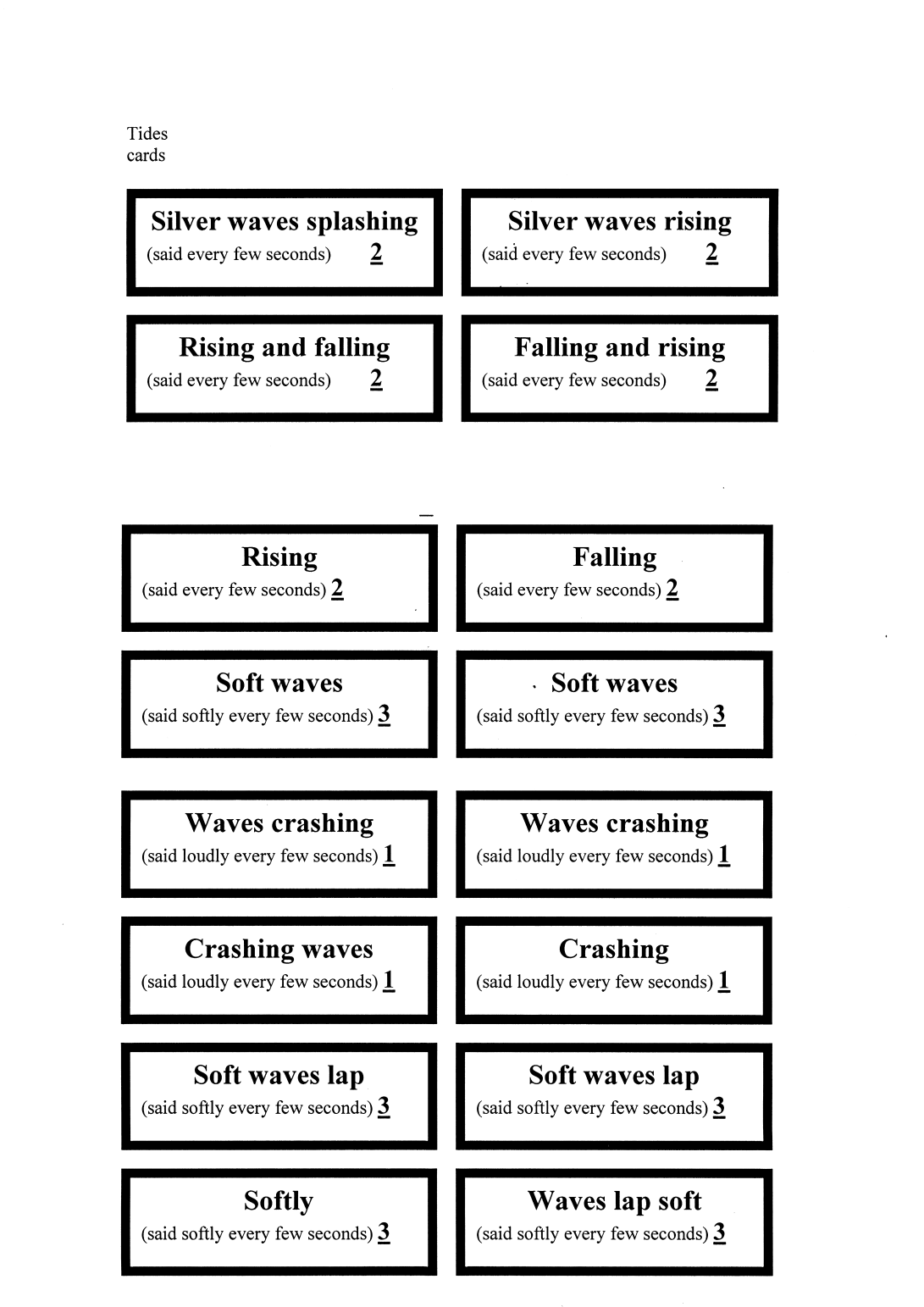
One of the accompanying pictures has 16 audience participation cards which allow audience members to speak out of sequence with each other. This will allow audiences to participate in the poem. Any size of audience. The 16 cards are printed, duplicated onto coloured card, and cut out. Then placed on every audience member’s seat before the show. Equal number of cards given out for each of the three verses. Cards are numbered 1, 2, and 3. Each depicts the phrases to be spoken by that audience member when the verse that matches the number on their card is being read. eg. Those with card number 2 read out their phrase when the second verse is being performed.

The poem is performed by the 4 actors with the first verse loud but, verse by verse getting quieter. The poem can be repeated twice. Someone not performing should indicate which verse is being read to the audience by holding up the appropriate number of fingers. They can discuss, with the audience, what the audience have to do before the poem starts. And they can encourage the audience to have a rehearsal by themselves before the poem starts properly (i.e. with the performers taking part).

The poem itself was a screen shot posted via a PNG file that had been cropped on Publisher 2010.

The file with the 16 cards on it was too complicated to save and post easily. So, I scanned the complicated printed page (using a high quality scanner) and saved as a high quality PNG file. This worked well and is another useful tool to use to post (to your website) your multi-voice poems or other complicated formats.

This poem has been performed by Chromatic Voices 1. It met with a great reception from the audience. The poem has been printed once in a Book by A.L.L. Times and thanks to them for permission to post the poem here.


If the poem is too difficult to remember then the performers can read their lines off of blank books that are labelled - for the audience to see - with the titles “Wind” etc. With their lines inside. The performers have to move forward line by line at the same time and not leave anyone behind. This is the most difficult part of the poem for the performers on stage. For performers, the more rehearsals you have the better. And this is true for any multi-voice poem!


[This article below is already on one of my websites and duplicates some of the above but is useful to look at.] Large Number Multi-Voice. Since I started writing multi-voice I have been writing different versions that are suitable for large numbers of people: these people being either the audience or the performing Poets taking up the tasks/voices between themselves. I recently devised a version which I think allows maximum variation around the basic idea. Firstly, I wrote a Poem about something that flows or changes (in my case it was the sea, but it could be e.g. time or emotion). There are definite points in the poem were things change by a large amount/in steps. This basic poem has words taken from its text and written up on cards for the audience to read, or for other members of the Performance Group to perform between them. Instructions on how the Poem is meant to be read are enclosed on the card for each member of the audience. The words should have meaning and should fit the various “steps”. In my Poem, the performers read about the sea and each verse has the sea becoming softer and softer. So, the audience have to read words that are very loudly spoken (in verse 1), then loud (verse 2), then normal volume (verse 3). The words themselves change from being harsh words like crash to softer words like lap. Each verse that is read has a number which relates to a number on the card the audience member has: so members of the audience with card 1 read out their bit according to their instructions while the performers are reading verse 1 at the microphone. Similar occurs for verses two and three. Hopefully this relatively simple set up should keep the audience involved and should let them feel part of the poem-in meaning and in sound. This set up might sound a bit complicated but should allow audiences of thirty and upwards to take part in a poem. I was ready to try out this audience participation version of my poem at a poetry night in Glasgow but the audience was only twenty that night and I thought that was too low a number to get the audience participation a proper try out. If your acting/poetry group wants to try this out then please get in touch with me.


Thursday, 10 September 2015

Language translators.


 Some more information on how to put a language translator onto your website.

I have now, at last, got a language translator that works on my Altervista site. It is: http://free-website-translation.com/

Of course, language translators will not translate poems that are posted as pictures. However, multi-voice poems are usually so intricate and exact that a translation of an html (multi-voice poem) post sends the text all over the place. However, the text will go back to where it should be when the Language Translator is turned off, or when the viewer exits the webpage.

Even if someone looks at a multi-voice poem and they don’t speak the language of the poem, I believe that the poem can still look fascinating. I intend doing a Post soon which will be a multi-voice poem made into an art work. I think multi-voice poems are intrinsically artistic. As I said in a previous Post, a human rights group had wanted to use my multi-voice poems as artworks for a human rights exhibition. Unfortunately, the organiser became ill and it didn’t happen. The intention was for some entire poems to be painted (in various formats) as stand alone pictures. And for phrases from the poems to be pasted around huge stretches of wall. I think it would have worked. I would be glad for someone else to try this. eg. an art gallery or a human rights group.


I found a useful post on the web with regard to language translators for WordPress.com: https://en.forums.wordpress.com/topic/multi-languages-of-the-same-theme?replies=8#post-551125 Posted by timethief who is a member of WordPress.com Forums.

As s/he says, “If you wish to use this code then you will have to replace the URL for my blog i.e. onecoolsitebloggingtips.com with the URL for your blog throughout.”


If you go to the site and copy the html for the language translator and then paste it into an editor like Notepad. Then you replace that person’s URL for their website with the URL for your website (Edit; Replace; Replace All.) Check that the change has been done properly-I seemed to have gotten two URL’s for each line when I posted into WordPress.com. So you then go to WordPress.com and paste in the html editor your version of the code from the site with your own URL replacements. Preview it to check it is ok. Then Publish.

So thanks to timethief for this helpful Post and I finally got it working ok. (I am a beginner but I think that this method for WordPress.com works-where many others did not work-is because the html is a set of hyperlinks to a site where the translation is done. So the translation is not done on your actual site-so no potentially risky coding on site.)

Please have a look at each of my multi-voice sites and at the different language translators now on each.

Web addresses are:       


And another at:


And also at:


http://multi-voicepoetry.yolasite.com/


And now also at:


RECENTLY PUBLISHED MULTI-VOICE POEMS OF MINE:

On 15/4/2015 My Multi-voice poem  Ripples was published in Issue 1 of Rooms.

On 24/6/2015 I learned that my Multi-Voice poem Many Different Animals would be used by Dupe web magazine in the Wild Issue:  http://wearedupe.tumblr.com/About


A little matter of Economics multi-voice poem.


Sunday, 30 August 2015

Using a language translator for your website


LANGUAGE TRANSLATORS.                                                    

I have always been interested in the many different ways there are (or are not) to translate languages on your website (or blog). What I say goes for Blogs as well as websites. Some WordPress themes are said to be “translation ready”-making it easier to translate. But they don’t actually translate. I have spent ages trying to work out how to get free translation on WordPress.com and failed. WordPress.org websites costs money to use but you can get actual translators that are designed for them. There are free ones but the best translators cost money (or so the experts say).

Google Translator translates and is free. I don’t think it worked for me on WordPress.com because it uses Javascript which WordPress does not like.

My Yola website already has a Google language translator there. You just have to get it ready to go.

I could not get any type of translator to work on my WordPress.com website. I tried Google translator which didn’t work on Blogger either (strangely enough as they are both the same company I thought). But I added a Bing Translator to Blogger and it worked. Google Translator works on the self hosted WordPress but not on WordPress.com (the free site)

I could not get any translator to work on my Altervista website. I have just started using Altervista and it does not Blog at all with the beginner’s theme website I have. Also it is not user friendly (well, not Ashby friendly).


Here are some translators which are free and you just have to put in the URL of your site (into their little code manufacturer) to get some code which you add to your post or page. Even I can do this. How good the translators are-as regards accuracy-I don’t know.


Also there is


Addendum.

I have not tried the ones below.

http://imtranslator.net/translation/#


http://www.conveythis.com/


This is a site that lists lots of translators:

http://www.lexicool.com/translate-web-page.asp

An excellent article: http://lifehacker.com/five-best-language-translation-tools-1634228212

And this too: http://listoffreeware.com/list-of-best-free-translation-software/

Thursday, 27 August 2015

A beginner’s guide to putting pictures onto your website via an html post.


Subtitled: Saving a multi-voice poem using “Print Screen” command: Part 3.

This has been a long and difficult road but hopefully it will be easier for you. I encountered “a few” difficulties doing what I thought would be easy.

The most helpful web editors doing this were Microsoft Expression Web 4 (which is available on free download and has no time limit on usage –so the experts say-no matter what is says when downloaded). I also used a different web editor for the first time. Alley Code is a new web editor I had never tried before. It was available on free download.  It worked well. Both web editors correctly showed the two page poem Roadblock on Design mode and on Preview mode.

I spent a lot of time trying to get the html for two Print Screen Command pictures to work properly in the html editors of Blogger and WordPress.

WORDPRESS.COM

Firstly –as a beginner in html- I was not sure what happened when you went to Insert on your web editor to insert your two pictures. I had thought that the code was a representation of the picture. Then I thought perhaps the code linked to the picture which had been somehow saved in the Web editor and would Post to my website along with the html. Neither was right. When you go to Insert and find the picture file you are looking for, in our case a picture file but it could be any image file, you insert an identifying code into the html - from the picture. And this can be used to trace it later.

Please put a space between your two pictures in the html-to stop them appearing side by side rather than one above the other (use paragraph tabs for instance). The two files should be in the Body part of your html one above the other.

You need to have your two picture files already in the Media gallery of your website. It is easy to add picture files to most website picture galleries. Although I had both pictures there, when I Posted the html into the html editor on my site it did not work. I don’t think the html “found” the pictures properly (on the WordPress Post it showed an icon and the alternative text where the picture should have been). So, on WordPress.com, I went to the Picture gallery (I selected insert media and it took me to the Gallery). I clicked on each of the files one by one. For each file I selected it and made sure I had the image set to the right size. For the first file I clicked it (it shows a tick when it is selected) and went to Inspect Element. I then copied the identification part of the image (the src bit). It is in a box labeled URL. I put this in instead of the identifier script I had already in my web editor (the identifying bit between the quote marks). Make sure you replace one bit with exactly the same bit  of code (the identifying bit).  I then did the same for the second bit of src image code. I then Published this and it worked. So, you should be able to see a Roadblock poem added to my site via a Microsoft Expression Web 4 editor (that is how I have titled it). It looks clear and is the right size. Again, I tried books, and help sites and Googling for help but I had to stumble my way through it.

You can also see the URL and set sizes of pictures on WordPress.com by going to Media and then to Media Library and double clicking a file.


BLOGGER

Also on Blogger-when trying to Post the html code I had made up- the pictures did not show. Only an icon and the alternative text. So I went to insert Media and then, From this blog. I then clicked to select the picture. A tick mark appears when selected. When you have selected a picture, you must pick Extra Large picture from the options of size that you are given. Right click and from the options choose: Inspect Element. (I could not see a URL option). You will see a lot of text highlighted that describes picture size and details. Choose to Copy this code. This is the entire code necessary for your picture to be identified and published at the correct size. Delete all the image code for each picture (in your web editor) and replace it with the appropriate code you have gained from each of the pictures on Blogger picture Gallery. You can insert this code either directly into the html on your Post where that picture should be. Or copy it and paste into your web editor (which is preferable if you want to add text and make changes). The code for the Blogger picture seems to be a hyperlink rather than just a link (but it does work). I now have the Roadblock two page poem on my Blogger website. It is slightly too small to see clearly.


To summarise: How to place your images into a Post for Blogger and WordPress.com You have your images already in your Media Gallery. Make sure they are the right size (by selecting and changing if required). Copy the URL or identifying code for the pictures you want to use. This can be placed directly into the website’s html editor at the right point in your code. Or can be placed at the right point in your code in your web editor.


Of the two methods of placing your print screen pictures onto your site as a Post, you may think that the method where you simply post it in from your Media Gallery is the simplest. I didn’t always get that working though-sometimes the Post placed the pictures side by side rather than one on top of the other. However, if you can Post your print screen pictures as part of an html Post then you have learnt a lot about html. Also, you can add bits of text and other links as well. If you can do it, please try the web editor method (both methods were compared in my last Post).

Glossary:

Within the angle brackets your image will have the identifier: img src=“yourpicturefilenamehere.png” If you are using a format other than PNG then it will be a different format at the end.

You will also have to (in your web editor) give a short alternate description of the image. And also a long more detailed one in case it does not show. Your web editor will ask you for it when you Insert your picture file.

src means source.

img means: image.

html means: hyper text markup language

Links allow users to e.g. click their way from page to page within a website.

A hyperlink is a text or an image you can click on, and jump to another document.


Always be tidy and use a separate folder in My Documents for when you are using the screen shot command. It keeps everything together. But all web files that you have prepared in your web editor and are ready to be opened by your browser (e.g. Google Chrome) should be saved in your My Websites Folder (I read this in a help forum but I am able to open web files from other folders). It saves automatically to there when I click on Save Web Files. Make sure you always Save with the correct format in Save As Type (e.g. Save As Type in Microsoft Expression Web 4 automatically saves as Web Pages for me). Do not save a web page as text.

PS

In the last post I gave a link to a site which said that Alt and Print Screen allows you to copy and paste the active screen instead of everything on the screen. Please try it, but it didn’t work for me. Here is another site that says it should work: https://en.wikipedia.org/wiki/Print_screen


I eventually added the two print screen pictures to Publisher. This is a text and picture editor. I saved this as Rich Text and it seems to have worked ok. Memory used up was about 5 mega bytes.


And also, in one Post I was worried about print screen pictures added from html Posts maybe using up a lot of memory. Well they don’t.
 

Sunday, 23 August 2015

Saving a multi-voice poem using “Print Screen” command: Part 2.

 At the end of the previous Post, I set myself the challenge of finding a way to put more than one page (or one screen shot) into a Post-in order to replicate a two page multi-voice poem. To try and get one page under another for print screen shots I have done the following (plus follow the instructions for the “print screen” command article I recently wrote). Again, it does matter what browser you are using. Google Chrome is a trusted browser.

There are (at least) two different ways to try.
The first is to put your two picture files into the picture folder for your website host Picture Gallery and then insert them from there into your post or page. Make them as big as possible so you can see the text clearly. Have them as near as possible vertically-so there is no space between the two pictures. And have them fitting for size and text alignment. Theoretically this should be easier than working with html and css.
The other is to put both picture files into a photo or web editor and line them up there. I have tried lots of different editors to do this. One that added the pictures nicely for me was Microsoft Word when opened as a Blog post. I didn’t even know it could do that. Oh, and Microsoft Expression Web 4 also worked. Many did not work for me but that may have been my lack of experience in using them. So, I will try and place my two page poem Roadblock onto all my multi-voice sites using whichever method works (if any).
This is the method I used for Microsoft Expression Web 4 (use whatever web editor works for you): I obtained one screen shot of each of the two pages of my multi-voice poem Roadblock. I opened a new Microsoft Word file and pasted in the screen shot. I clicked on the screen shot illustration to pick it then: Save As Picture. Save this as a PNG (portable network graphics) photo file. This is a good quality format. I have then clicked on this file (to pick it) and Opened With [an option given] Serif PhotoPlus X5. I cropped this till only the poem and none of the extraneous bits were showing. I saved this as a PNG file (but there are other options too). I then opened Microsoft Expression Web 4 (you use whatever html editor you use) and changed the title in the html heading to Roadblock. I then went to Insert and then Picture and then File. I found both and entered page 1 then below it page 2 in the body section of the html. When I go to Design view it seems to have placed the two pages as near as they can be. I have just to place the poem into my Websites.
Always be tidy and use a separate folder in My Documents for when you are using the screen shot command. It keeps everything together.
Addendum: I have just seen these instructions which are useful for just capturing the active screen (cutting out any extraneous bits):
And this tells you about some limitations: http://graphicdesign.stackexchange.com/questions/27946/is-it-possible-to-take-high-quality-screen-captures
And this that I have not tried yet: http://www.7capture.com/ (free print screen capture software that claims to be excellent).
Since I wrote the above I have put two Roadblock picture files in the WordPress Picture Gallery. I tried many times to get the two files to line up correctly-same size and aligned vertically. When I eventually did get it working in Preview, I Published this. Annoyingly the two pictures moved away from each other when Published. I had to Trash the Post. This happens a lot for me. I get things all aligned in WordPress Preview and then they drift apart when Published. So my one picture poem worked ok on WordPress but not my two picture poem. I have also found that when you change Theme that it can change the alignment of complicated text: although some experts told me this would not happen. So I am wary about changing Themes.
I was able to load the two picture files and manoeuvre them properly on Blogger. I have Published this.
I have also tried to use the method where you put the picture files into a picture or web editor and Post them directly to your Website. This never worked for WordPress. I will now try it for Blogger.

One last tip. I like photography and often take pictures of Nature. These are useful for adding to Websites. Pictures you take can also be altered in a Paint package or used directly as background.

Tuesday, 18 August 2015

SAVING A MULTI-VOICE POEM USING THE“PRINT SCREEN” COMMAND.


SAVING A MULTI-VOICE POEM USING THE“PRINT SCREEN” COMMAND.
This takes up a bit of memory but I am trying it out to see how it works. Peace is a 4 part multi-voice poem. I have a version on rich text Microsoft Word that is eight point Lucida Console (a monospace font). I have this poem on a couple of my sites already (as html) but have not yet tried this way of saving the poem.

I view the poem on the file and zoom in until the poem fills the screen. I then do a print screen command (on my PC this is “Ctrl” and “Print Scrn” keys at the same time). I open a new Microsoft word file and paste in the file. I click on the screen shot illustration to pick it then: Save As Picture. Save this as a png (portable network graphics) photo file. This is a good quality format. I have then clicked on this file (to pick it) and Opened With [an option given] Serif PhotoPlus X5. I cropped this till only the poem and none of the extraneous bits are showing. I save this as a PNG file (but there are other options too). I will try to load this onto my web site and see how it looks. This is easy to do but I cannot see how I can do it for a two page poem (i.e. two screen shots).
I had to choose google chrome for my browser before the file would add.

Ashby

CREATING A WEBSITE


CHOOSING A WEBSITE HOST

I have been searching for a year for the ideal website for someone who wants to post complicated text (like poetry). I need a free site. I also need one that is hosted by the web company (to save me having to do security updates, and finding and paying for a host server). I also need a site that is ok for beginners. So, I need one with already written Themes.

I am no web developer.  And I find it difficult to find (internet or magazines or books) good help when I have difficulties in posting multi-voice poetry. So I have went from WordPress (which does not always cope with the html I post) to Blogger. I have had a few difficulties with code in Blogger as well recently. So, I have started a Yola account too. I also have difficulty with Yola with some html posts.  Two html posts went on ok. Then two html posts didn’t. All these are free sites.   I use all these sites.  I write in an old laptop at home then use a memory stick to upload my writings.

Advertising:  Of the sites I have mentioned, only WordPress puts advertising on your site. I fear that, apart from it looking not that great, that there will be ads that I don’t approve of (with me being an animal rights person). I do understand they have to make a profit somehow though (Websites get paid for the advertising that is placed on your site).

I also have a free Tumblr. account.  I use a local Library for internet access but Tumblr. is partially blocked there.  This is an interesting article about using html with Tumblr.: http://buildthemes.tumblr.com/post/41557258904/displaying-html-and-code-in-tumblr-posts

I have just heard that Twitter will in the next few weeks raise its word limit from 140 characters to 10,000 characters but only for direct messages. Public Tweets are still at the 140 character limit.

Yola was recommended on many review sites. So I started a website there.  I have just found out that you can only have three pages. Also, that is does not Blog. At all! You have to Blog on Tumblr, and get posts allowed on Yola using a Tumblr. Blog Widget (it does seem to work and is easy to set up but I don’t know why you cannot do ordinary Blogging on Yola). Again they have a host of help lines and community lines and forums and help emails, but none seem to answer the questions I have. Also, I have not found Yola easy to work with (with regard to editing my website).

So, I have WordPress automatically send my posts to Tumblr. And Tumblr. automatically sends those posts to Yola. They must get tired out.

Partly because no website is perfect for me and partly for me to be able to write about whether they are worth joining, I have started a new free website on Altervista. My other new Website name is: multivoicepoetry.altervista.org They offer three different levels of complexity of theme. I have chosen (yes, you guessed it) beginner level. It seems to be able cope with the html for my poems as long as they are not five or six columns broad and needing a lot of horizontal space.

I cannot try out every website host but I did note that both Wix and Freehostia have some themes which are Free.


You will find on touring the internet that huge excellent looking reviews of websites sometimes miss things or get things wrong in their comparisons. Some reviews are not independent and are sponsored.

The only way to really find which site is best is to try a few. Blogger so far has been the best website for multi-voice. WordPress is great for lovely themes and simple prose. But Yola seems very limited.

And I am on Facebook too.

And on You Tube (well, Chromatic Voices 2 are) at:


I have a multi-voice website. Web address is:


And at:


And at:

multi-voicepoetry.yolasite.com/


Also a human rights poetry website at: https://humanrightspoetryashbymcgowan.wordpress.com/


And a short story website at: https://ashbyshortstories.wordpress.com/


I also have automatic sendings of my posts on WordPress to these two sites:


https://www.tumblr.com/blog/ashbymcgowan


PROSE.  Many years ago I used to write a lot of factual prose. Twice I had serious complaints against publishers. I was a Member of a professional body and also sought legal help but on both occasions I was unable to do anything. I was so upset over what had happened and the inability to something about it that I gave up writing factual prose. That was fifteen years ago.

PLAYS.  I have never found a New Writing Theatre in Scotland (if such things exist) able to help me develop and put on any of the plays I have written.  None have ever come to any rehearsed readings of my work that they have been invited to. And I have no connections in any Theatres

Poetry.  In poetry, conFAB is worth looking at for possible support.

Speaking for all the creative writing disciplines I have used, I have never (apart from conFAB) had funding from any creative group or writing group. Any Funding I (or Chromatic Voices) has had has come via the poetry group conFAB.

Tuesday, 11 August 2015

DANCER


                   Dancer 1                          Dancer 2


Blue fingered, dancers dreamlike, slowly moving,          Light fingered, shadows seem like, colours moving,

As we dance down, upper sky                               As we dance dawn, passing by

Light lingered, shadows seem like, colours merging,       Blue lingered, dancers dreamlike, slowly merging,

As we dance dawn, passing by                                   As we dance down, upper sky

Past birds, past clouds, brown hills, green fields,       Fast birds, fast clouds, green hills, brown fields,

And splashing white and grey, we dance                    And splashing grey and white, we dance

Fast birds, fast clouds, green hills, brown fields,       Past birds, past clouds, brown hills, green fields,

And splashing grey and white, we dance                    And splashing white and grey, we dance


LOVING YOU

Loving You

[This poem contains a few swear words.
I have used asterisks in these words
but when performed obviously the word is performed as intended.
This is a performance Poem for two (very over the top) Voices] LOVING YOU Voice 1 Voice 2 Love you ……………. …………….. Love you I love you ………………… …………. I love you I love you …………….. ………….. I love you I love you I love you I love you I love you I ……….. ……………… Love You ……. ……………… I love you! I love you lots and lots …………….. ………………… I love you more than life itself I love you more .......... than anything else ………………………. ……………………… I love you more than the stars ……………………………. love the sky I love you more than the ……………………………… Sea loves the shore ……………………………… ………………………….. I love you more than anyone has …………………………. ever loved anyone else I love you more than ...................... anyone has ……………………………. ever loved anyone else ………………………… …………………………… I love you more than that And I love you ........................ much more than that! ……………………….. …………………………….. I love you the most! No you don’t ………………… ………………………….. I do Don’t ….. ……………………………… Do! You only love me when ………………… you want something ……………….. ……………………………. Rubbish! You used to love me, ………………….. but now you’re only ………………… Nice to me when you’re …………………. drunk and you’re randy …………………….. ………………………………….. You Ba***rd! You Bas***rd! …………………. You F***ing Ba***rd! You F***ing Ba***rd! I love it when you talk dirty, …………….. Say some more …………………… ……………………… I really do love you, you sweet ………………………… And lovely Ba***rd Ohhh! Darling, I love you! Ohhh! Darling, I love you!

Thursday, 30 July 2015

How to use Web Editors

There are a few reasons why you use a web editor to write material for your website and don't rely on using an ordinary text package like Microsoft Word. As one example, a package like Word will place its own formatting onto your writing which can mess up things when you go to insert it into your website. If you have to use Word then Save As "Rich Text" (which will get rid of some of the formatting you don't want) before you Paste it into your site. Some people paste their Word writings into a Web Editor and then paste that into their website. I am writing as a beginner in html and I feel that is still a useful viewpoint to write from e.g. I genuinely know the difficulties that other beginners suffer in getting their writings published onto their website. As regards multi-voice poetry, there seems to be two ways of adding your writings to your website. One is to use preformatted text tags and monospace fonts. The other is to use html and possibly CSS and make up from two to six columns of text (using Div tags). You can cut and paste the html structure from one of my previous articles in WordPress. If you are good at html and CSS then you can probably make up the html structure yourself. The html would be written in an html editor. As would the preformatted text tag variant. HTML does not recognise more than one white space at a time. It does not recognise more than one line break at a time. It does not wrap text to the next line when you come to the end of a line. And it doesn't recognise tabs. Using preformatted Text: When you use the preformatted text tag before a piece of writing and a end preformatted text tag after the end, then you will have a piece of writing where all the white spaces and line breaks are kept. You need to use a mono spaced Font because ordinary Fonts have different widths for different letters and for different punctuation. If you use a monospaced Font every space, letter, and punctuation mark will be the same width. This is what you need. Courier is not an attractive font and I use Lucida Console (which I am using just now). But there are many monospaced fonts to choose from (Including a Courier New, and Andalel Mono). So you would use-

<p><!DOCTYPE html></p>
<p><html></p>
<p><head></p>
<p><title>usingpretags</title></p>
<p></head></p>
<p><body></p>
<p><pre></p>
<p>your text here</p>
<p></pre></p>
<p></body></p>
<p></html></p>


Another difficulty -for me- with using code is that I am doing two things with my multi-voice websites. The first is to show my multi-voice poems to you. The second is to teach you how to place your own multi-voice poems onto your own website. Here I show you the code that I use to prepare my poems for my site. However, putting code onto a site means the site tries to turn the code into a poem. To stop this and let you see the code behind the poem-the code has to be "wrapped" in a particular type of protective code that will stop it being changed from html (or CSS).
When downloading a web editor make sure you do so from a trusted site. I have used the first Notepad (version 1) but found it not at all user friendly. I usually use Microsoft Expression Web 4. This is user friendly and gives you an Edit html mode and a Design mode (which shows you what it thinks a Browser will display). There is also a Preview Browser mode which allows you to take the code into a browser to check it more accurately than in Design mode. I believe that this package is now free for Download. Dreamweaver is the best known web editor package. It is similar in aims to Microsoft Expression Web 4. I have not tried it and cannot comment on it. It is not free. To try out other packages (to know which to recommend), I Googled "freeware web editor" and "free html editor". I got about thirty names. Most were not free and were only on limited trial offer. Some of those that remained are partial versions of full price packages (which obviously the makers want you to buy). I never downloaded any that were for expert web Developers. I tried out these eleven that were free and that I could easily download (I had trouble downloading some others but that may have simply been my lack of expertise): NoteTab Light, Website X5 Free, PageBreeze 5, Lauyan TOWeb V6, TextMorph28, WDL Website Builder 4, Notepad2, Alleycode HTML Editor, Blue Griffon, Coffee Cup Free HTML Editor, and EditPad Lite 7 (I wrote the main part of the article using EditPad Lite 7,than pasted this into CoffeeCup Free html editor to re-do in html). It is worth at least trying out a Free Text Editor instead of using Microsoft Word. Here is a beginner's guide to five free Text Editors designed for writing for the Web (I could not say that any were, excellent): Edit Pad lite 7: Very basic. Has a preview in browser mode (but no html mode). You write text that goes straight into your website. There is no spell check though. Text Morph: Very basic. Can also show HTML in html VIEW mode. But you cannot edit the html. Text goes straight into your website. Not user friendly. Note Tab light: Very basic. Not user friendly. Lauyan TOWEB: Is a text editor but is mainly for making complete websites. Worth trying if you are hosting your site as well as writing for it. Not for me. Incomedia Website X5 Free: A text editor as part of a build an entire website package. Extremely basic. Not for me.
Here are six html editors. I recommend that you if at all possible try to learn how to use an html editor! A few seem excellent but need to be tried out by you: Notpad 2: Not user friendly. Not for me. I think this is aimed at experts. Pagebreeze 5: Looks good. Has a visual WYSIWYG (what you see is what you get) view and html editor. Also has a preview browser view. Blue Griffon: Looks good. Has a WYSIWYG view mode and an html editor Coffee Cup Free HTML Editor: Looks good. Has a split preview mode (to see html code and WYSIWYG). Can preview in browser. WDL Website builder 4: Looks good. Has an html code view and a WYSIWYG view. Has a preview in browser view. Alleycode HTML Editor: Looks ok. A bit basic. Has a split preview mode (to see html code and WYSIWYG). Also has a preview browser view. When I first started to try putting multi-voice poetry into my WordPress site I tried the Visual Editor and used Microsoft Word as a text editor. This took a great deal of time and was never completely accurate. Eventually my WordPress site could take up to four columns using html coding given in a previous article on my WordPress site. But WordPress could not cope with five or six columns where the text was very small. My Blogger website has only once failed to correctly take the html I have entered into that site. I recommend that you pick one of the four best HTML free editors mentioned above. Get to know how to use it. You might even enjoy using it. I use WordPress and Blogger for my multi-voice writings. WordPress does not seem to suit all types of multi-voice. Also, I have read (on a poetry blog) that Blogger may be on the way out. I hope this is not so! But it means that I have had to look for another free website host. Blogger has no ads. So far I have had few ads on WordPress. I couldn't find a new website without the possibility of ads being there at some point. Again, a couple of times I had thought I had found a free website host only for my account to change from Free to Premium (paid) meaning I had to cancel that site. The most suitable free site looks good though. I have started a multi-voice site on, Yola. It is Free and you have a Free mark on your site which is good. I will keep you updated. My Yola site is: multi-voicepoetry.yolasite.com
Addendum. To give you an idea of the difficulties you get doing simple things in html (not trying to put you off using it though!) I know that different browsers react differently to the same bit of html. In the above article I used the correct html to "wrap" the source code of a bit of html I wanted to show you. This is a very basic thing. It worked fine in Yola. I found that using WordPress, I had to change the "wrapping" code. I needed to search Forum's in WordPress to find out how to do this.  If I can get it working, I will use it in my WordPress site.
In Blogger, the "wrapping" code did not work at all. There is a fix but it seems very difficult. If I can get it working I will use it on my Blogger site.